 The Blocker
Start with Safari. The Blocker blocks adult websites and sites you choose in Safari on iPhone and iPad. Install it, enable its Safari content blocker, then use the in-app test to check your setup.
This guide is written by the developer of The Blocker. The app supports iOS 17.2 or later. Settings names can differ with your iOS version and language.
1. Install and enable blocking
- Download The Blocker from the App Store and open it.
- Follow the setup in the app. On recent iOS versions, Safari extensions are in Settings → Apps → Safari → Extensions. On iOS 17, Safari is directly in Settings.
- Enable The Blocker’s content blocker. If an extension details screen shows Allow Extension, turn it on. Enable it for the Safari profiles you use.
Apple explains extension controls in its Safari extensions guide. Installing the app alone does not enable Safari protection.
2. Check that Safari is blocking
Return to The Blocker and tap Test it. The test opens in Safari and reports Blocking is ON when the test request is blocked. You can also open the blocking test page directly in Safari.
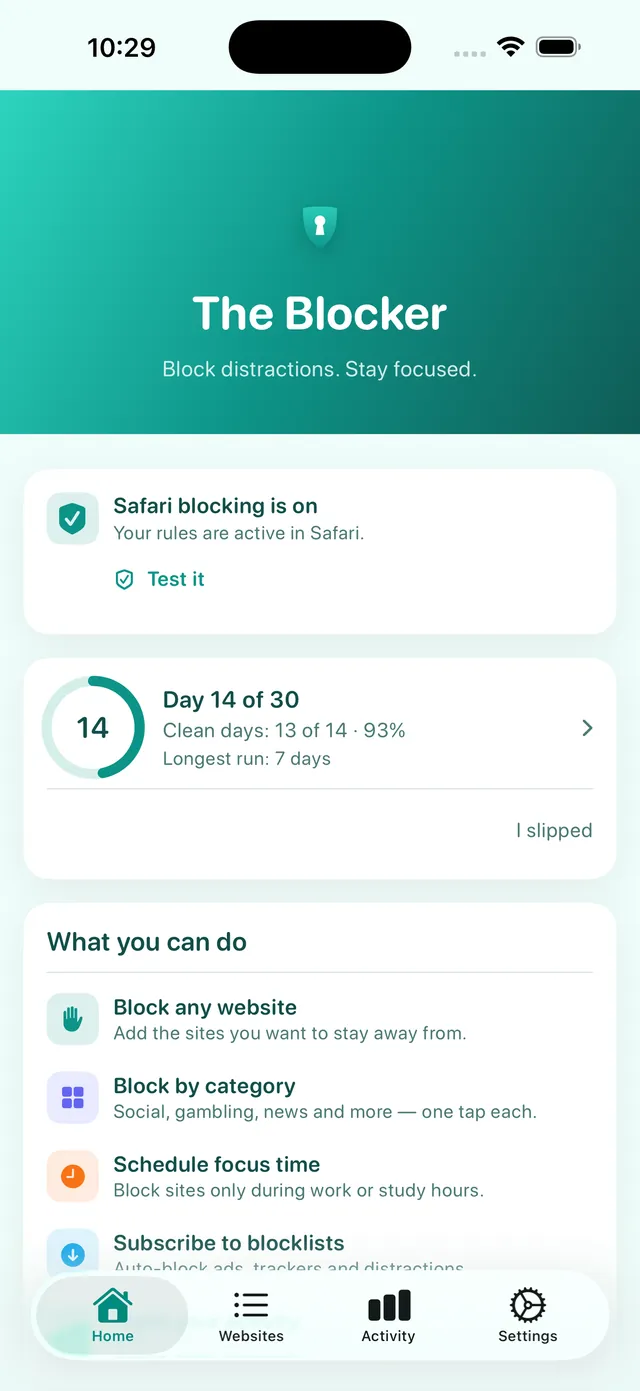
This confirms the blocker is active for the test. It does not mean every unwanted website is on the blocklist.
3. Choose your boundaries
The free version includes the adult category and up to 10 websites of your choice. Add sites in Block Rules, and use the always-allow list for exceptions. Pro adds more categories, unlimited sites, schedules and a delay before turning protection off.
4. Add Screen Time where it helps
Apple’s Limit Adult Websites filter and restrictions on app installation can complement Safari blocking. For a child, manage these through Family settings and keep the Screen Time passcode with the parent or guardian. Apple’s current parental-control guide shows the settings for your family setup.
For your own device, you can ask someone you trust to keep the Screen Time passcode. Decide together how you will handle changes and recovery. This adds friction; it is not a guarantee that restrictions cannot be changed.
Know what is covered
The Blocker is a Safari blocker. It does not filter Chrome, Firefox or all content inside other apps. Review those separately if they are part of what you want to limit. No website list can promise to catch every page.
What happens to your browsing data?
Safari applies the content-blocking rules on your device. The optional Stats extension checks site names against your rules locally and keeps blocked-attempt counts for Activity and the rescue page. No browsing history is sent to the developer.
From version 2.8, anonymous usage events can help improve setup; they do not include the sites you visit or block. You can turn this off in Settings. Read the app privacy policy for details.
A calmer next step
If you join the free 30-day challenge, the rescue page offers a breathing prompt and a reminder of your reason for blocking. A slip does not reset your clean-day count. It is an optional tool to support your own choices.